logs.blobs.lol/four
I'm not sure if I can't read or just can't follow instructions, but the steps here on setting up Unity with VSCode did not seem comprehensive. At the time of writing this blog post, the VSCode docs were last updated on 5/26/2022.
Here is everything I had to do to set up VSCode properly, so I'm not writing C# scripts for my Unity app like a blind person.
- Install the .NET SDK and Mono. Then, configure my shell profile and ensure that Mono's
/binfolder is added to my environment'sPATHvariable:
-export PATH= ...
+export MONO_HOME=/Library/Frameworks/Mono.framework/Home
+export PATH=$MONO_HOME/bin:$PATH
- Run these commands to install
Microsoft.Unity.Analyzers:
curl -sSfL https://www.nuget.org/api/v2/package/Microsoft.Unity.Analyzers/1.14.0 -o microsoft.unity.analyzers.1.14.0.nupkg
ditto -x -k microsoft.unity.analyzers.1.14.0.nupkg microsoft.unity.analyzers.1.14.0
rm -rf microsoft.unity.analyzers.1.14.0.nupkg
- Create an
omnisharp.jsonfile at the root folder of my project with:
{
  "RoslynExtensionsOptions": {
    "EnableAnalyzersSupport": true,
    "LocationPaths": ["./microsoft.unity.analyzers.1.14.0"]
  }
}
Install the
Visual Studio Code Editorpackage via Unity's package manager: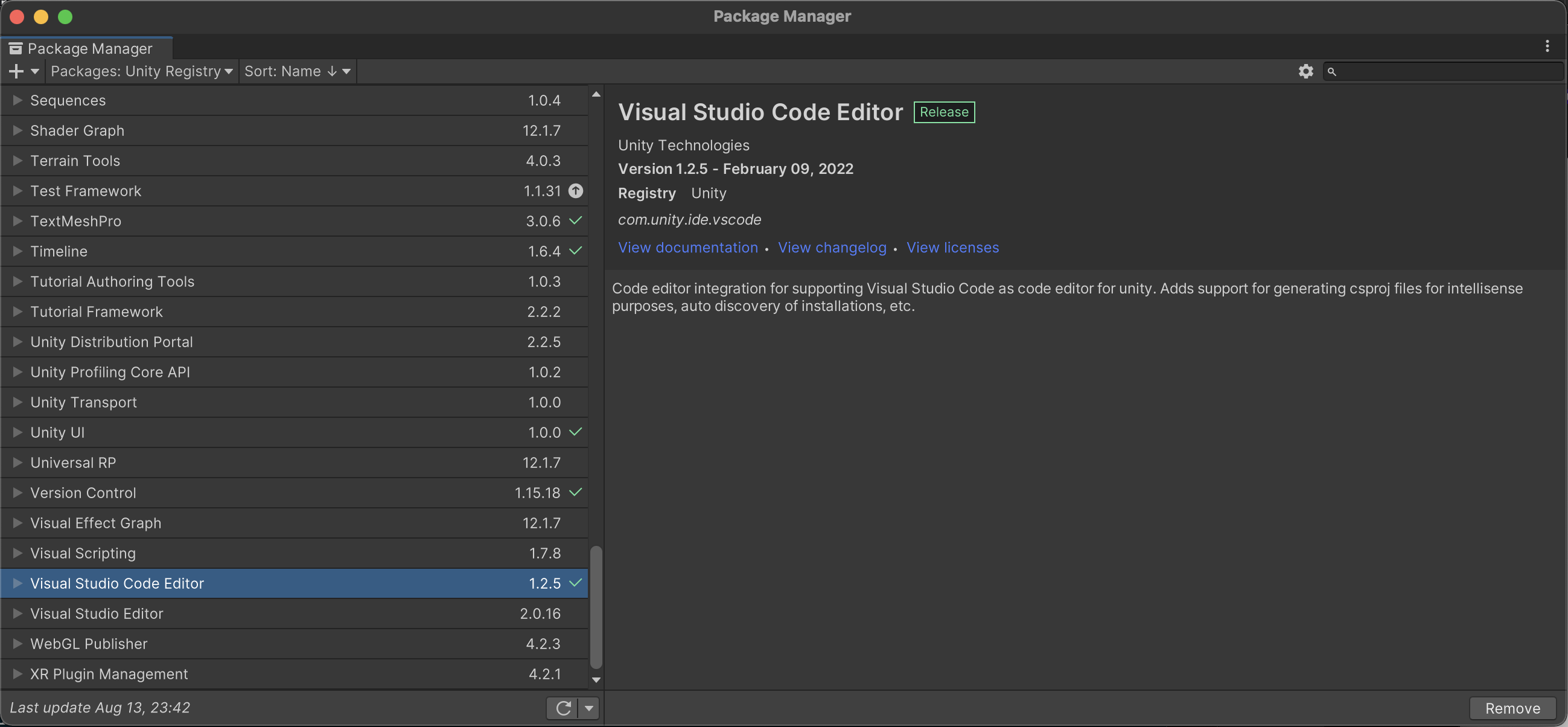
Regenerate project files in Unity:
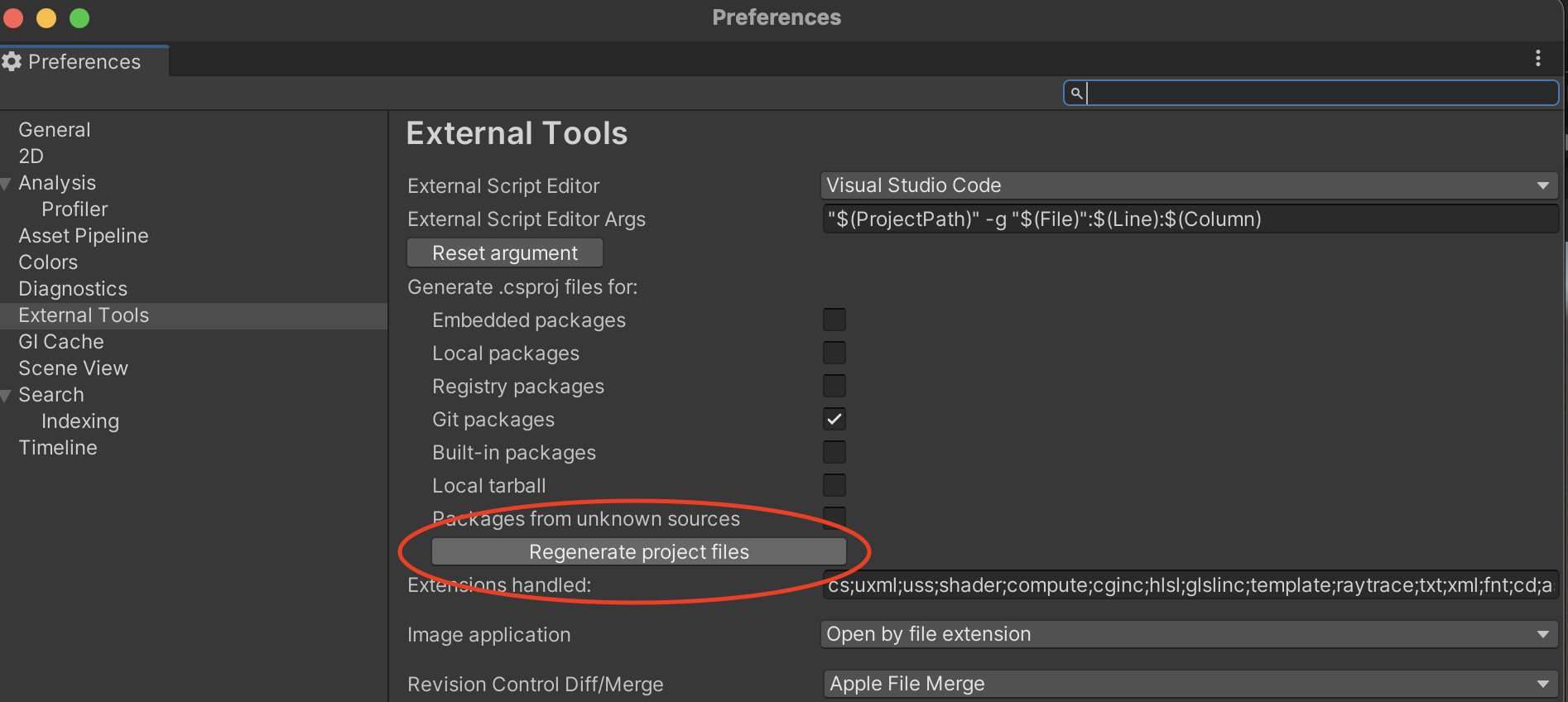
Open VSCode and install the C# VSCode extension.
I ended up installing v1.24.4 of the omnisharp-vscode extension instead of the latest, but I'm not sure if this mattered ... here are steps to do it for anyone curious:
curl -sSfL https://github.com/OmniSharp/omnisharp-vscode/releases/download/v1.24.4/csharp-1.24.4-darwin-arm64.vsix -o csharp-1.24.4-darwin-arm64.vsix
code --install-extension csharp-1.24.4-darwin-arm64.vsix
rm -rf csharp-1.24.4-darwin-arm64.vsix
- In VSCode, toggle these settings for the C# extension:
"omnisharp.useModernNet": false,
"omnisharp.useGlobalMono": "always"
Lol, I hope I didn't end up missing any steps ...